Hard Refreshing Your Browser: What It Is, How to Do It, and Why It Matters
If you've ever updated your website and then panicked because the changes didn't appear, or if a client tells you their site looks broken when yours looks fine — a hard refresh is almost always the first thing to try.
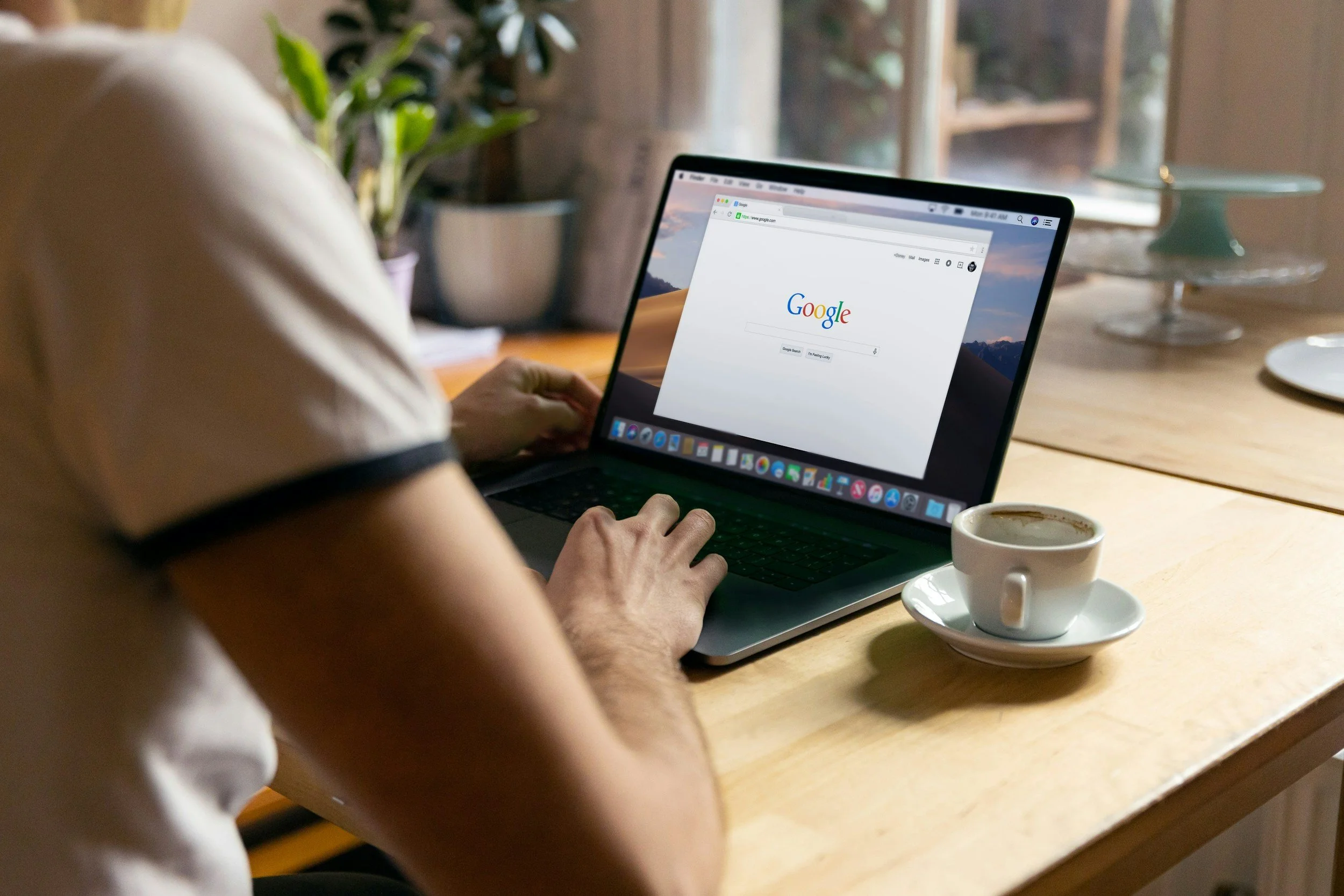
What's the difference between a regular refresh and a hard refresh?
Regular refresh loads the cached version. Hard refresh clears the cache and pulls a fresh version from the server.
How to hard refresh on every major browser and OS
Chrome on Mac: Cmd + Shift + R
Chrome on Windows: Ctrl + Shift + R
Safari: Cmd + Option + R
Firefox: Ctrl + F5 (Windows) / Cmd + Shift + R (Mac)
Edge: Ctrl + F5
When should you hard refresh?
After making website changes, when a client says something looks wrong, when styles seem out of date, after clearing Squarespace's cache.
What if a hard refresh doesn't fix it?
Clear browser cache fully, try a different browser, try incognito mode, check if the issue is device-specific.
*A note for Squarespace users specifically
Squarespace has its own caching layer. After publishing significant changes, give it a few minutes and then hard refresh.